Overview #
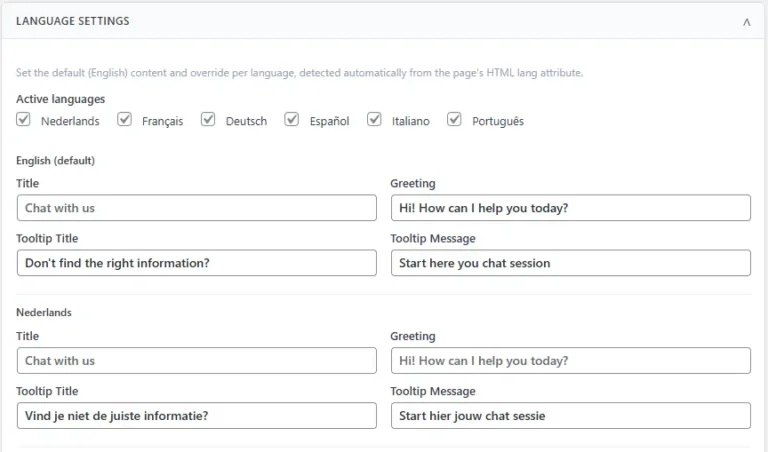
Language Settings is where you configure all visitor-facing text in the Corelex widget – titles, greetings, button labels, tooltips, exit intent copy, and WhatsApp prompts. Every string the visitor sees can be customised here.
At the top of the screen you select which languages are active for your store. English is always present as the default. Each active language gets its own card below, containing the same six sub-sections. Changes saved here take effect immediately – no cache flush required.
Sub-sections #
Each language card is divided into six sub-sections. The fields in each sub-section are described below.
Chat Window #
The core text elements of the chat panel itself.
| Field | Description |
|---|---|
| Title | The heading displayed at the top of the chat panel. Shown in the widget header throughout the conversation. Example: Chat with us |
| Greeting | The first message the agent sends when the chat opens. This is the static opening line — it appears before any agent-generated message. Example: Hi! How can I help you today? |
Tips:
- Keep the title short — it sits in a narrow header bar. 2–4 words is ideal.
- The greeting sets the tone for the entire conversation. Match it to your store’s voice (friendly, formal, playful).
- If proactive mode is enabled, the agent may follow the greeting with a contextual message based on browsing behaviour.
Thinking Animation #
The three-step loading text shown while the agent is processing a response. These strings appear sequentially as animated steps, giving the visitor feedback that something is happening.

| Field | Description |
|---|---|
| Step 1 | First line of the thinking animation. Typically describes the retrieval step. Example: Searching our catalogue… |
| Step 2 | Second line. Typically describes a secondary lookup. Example: Checking stock & prices… |
| Step 3 | Third line. Typically describes the synthesis step. Example: Putting together an answer… |
Tips:
- Keep each step under 40 characters — they display in a compact area.
- These strings are visible for only a few seconds. They don’t need to be technically accurate, but they should feel plausible and reassuring.
- You can tailor them to your store type — a fashion store might use Finding your style… and Checking availability… rather than generic catalogue language.
Tooltip #
The small prompt that appears near the chat button before a visitor has opened the widget. Used to draw attention to the chat without forcing it open.
| Field | Description |
|---|---|
| Title | The bold heading of the tooltip bubble. Example: Don’t find the right info? |
| Message | The supporting text below the title. Example: Start a conversation in Dutch, English or French |
Tips:
- The tooltip is often the first thing a visitor notices. Frame it as an invitation, not a notification.
- The message field is a good place to signal multilingual support if your store serves visitors in more than one language.
- Leave both fields blank to disable the tooltip for a specific language.
Notifications #
Text shown in proactive notifications — the messages the widget surfaces before a visitor opens the chat, typically tied to exit intent or dwell-time triggers.
| Field | Description |
|---|---|
| Before you go message | The text shown in a notification when exit intent fires, before the modal opens. Used as a brief attention hook. Example: Before you leave — don’t miss our free shipping offer |
| Featured product tip | An optional introductory line shown alongside the featured product card in the Phase 1 exit intent display. Leave blank to show the product card without any intro text. |
Tips:
- The Before you go message is shown for only a moment — keep it under 60 characters and lead with value, not a plea.
- If you leave Featured product tip empty, the product card appears without a text introduction. This is a clean option if the product image and name speak for themselves.
Exit Modal #
The visitor-facing text inside the exit intent modal popup. These fields control what the visitor reads when the modal opens.
| Field | Description |
|---|---|
| Eyebrow label | The small line of text displayed above the headline. Sets context before the main message. Example: Please don’t leave our shop! |
| Headline | The primary message — the first thing the visitor reads. Leave blank to let the agent’s proactive message lead instead. Example: Get 10% off your first order |
| Privacy text | The label shown next to the privacy consent checkbox, when that checkbox is enabled in the Exit Intent settings. Example: I agree with the privacy policy |
| Submit label | The text on the form submission button, when using the Lead capture form layout. Example: Subscribe |
Tips:
- The eyebrow label and headline work as a pair. The eyebrow creates emotional context; the headline delivers the offer or question.
- If you are using the Message + product card layout rather than Lead capture form, the Privacy text and Submit label fields are not visible to the visitor — but they are still saved if you switch layouts later.
- The Privacy text should link to your privacy policy. The link itself is configured separately in your WordPress privacy settings.
Quick Actions #
The labels for the quick-action buttons shown at the bottom of the chat panel. These buttons send a pre-defined message to the agent with a single tap, reducing the effort required to start common conversations.
| Field | Description |
|---|---|
| Check Order Status | Label for the order status quick action button. Example: Check Order Status |
| Start a Return | Label for the return initiation quick action button. Example: Start a Return |
| Shipping & Delivery | Label for the shipping information quick action button. Example: Shipping & Delivery |
Tips:
- These labels are the button text only — the underlying message sent to the agent when a visitor taps the button is fixed.
- Translate each label accurately into the language of the card you are editing. A French visitor should see Suivre ma commande, not Check Order Status.
- If a quick action is not relevant for your store (e.g. you don’t offer returns), leave the label blank to hide that button.
WhatsApp #
The text shown when the agent surfaces the WhatsApp human handoff option — typically when a visitor expresses frustration or explicitly asks to speak to a person.
| Field | Description |
|---|---|
| Prompt | The message the agent shows above the WhatsApp handoff button, explaining the option to the visitor. Example: Would you like to continue this conversation with one of our team members? |
| Button | The label on the WhatsApp handoff button itself. Example: Continue on WhatsApp |
Tips:
- The prompt should feel like a natural part of the conversation, not a system message. Write it in the same tone as the rest of your widget copy.
- The button label should be short and action-oriented. Continue on WhatsApp or Chat with our team both work well.
- When the visitor taps the button, an AI-generated summary of the conversation is pre-filled in their WhatsApp message composer. The prompt and button copy do not affect the content of that summary.
Managing multiple languages #
Language Settings opens with a language selector at the top of the screen. English is always present as the default and cannot be removed. All other languages are opt-in.
Activating a language #
Six languages are available as one-click checkboxes:
- Nederlands
- Français
- Deutsch
- Español
- Italiano
- PortuguĂŞs
Tick a checkbox to add that language card below the default English card. Untick to remove it. Each active language gets its own card with the same six sub-sections.
Adding a language not in the list #
If you need a language that is not listed, enter its ISO 639-1 code (e.g. pt for Portuguese, pl for Polish) in the ISO code field and click Add language. A new language card will appear with empty fields ready to fill in.
How language detection works #
Corelex reads the lang attribute on the page’s <html> element and loads the matching language card automatically. If a visitor lands on a page with lang="fr" and you have a Français card configured, they will see the French widget copy.
If no matching language card is found for the detected language, the default English card is used as a fallback.
Note: The English (default) card cannot be deleted. It serves as the fallback for any language not explicitly configured. Keep its fields filled in even if English is not your primary storefront language.