Table of Contents
There are 4 different behaviors that may get configured:
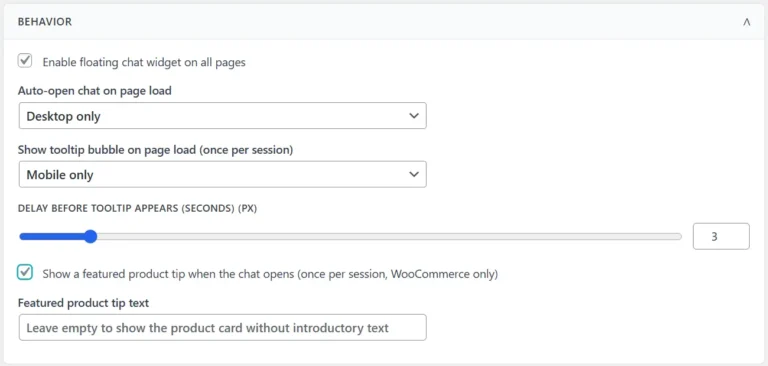
- Enable displaying the chat button – this is the basic configuration, if the checkbox is not selected the chat button will never be displayed
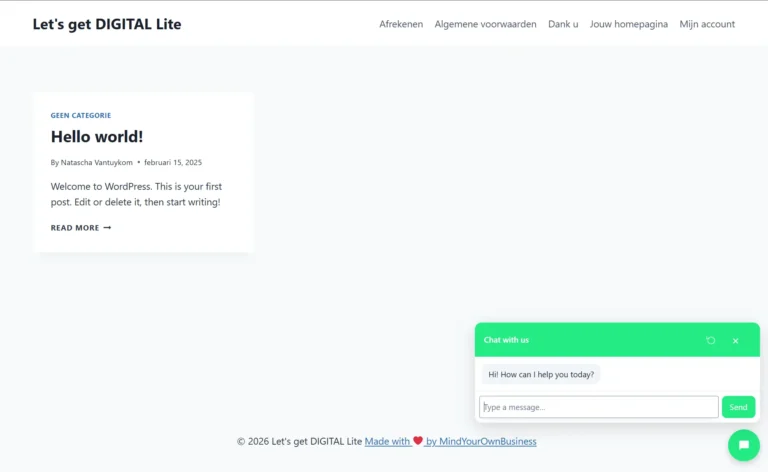
- Auto-open chat window on page load
- This option defines if the chat window will be displayed when someone arrives on the website. It will automatically open the chat window
- There are 4 options
- Disabled
- All devices
- Desktop only
- Mobile only
- Show tooltip bubble on page load
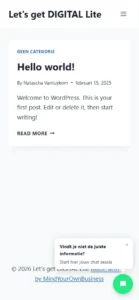
- This option doesn’t open the chat window itself, but rather shows a tooltip to highlight the chat icon
- There are 4 options
- Disabled
- All devices
- Desktop only
- Mobile only
- Show a featured product tip when the chat opens & Feature product tip text field
- When you have defined featured products in your webshop, you may display one of the featured products automatically in the chat window
- If there are multiple featured products, they will be randomly displayed to different website visitors
- If you leave the Featured product tip text empty, there will be no text displayed above the featured product. If you do provide text in the Featured product tip text field, then this text will be displayed above the featured product in the chat window
The following shows the behavior for the chat button options
Auto-Open chat window – Desktop only #
Show tooltip bubble on page load – Mobile only #
Using the tooltip on mobile ensure that the chat functionality is still highlighted to your website’s visitors, while it still keeps your website visible. Opening the chat window (like displayed here above) also on mobile is less user-friendly as it often completely covers your webshop’s original pages.