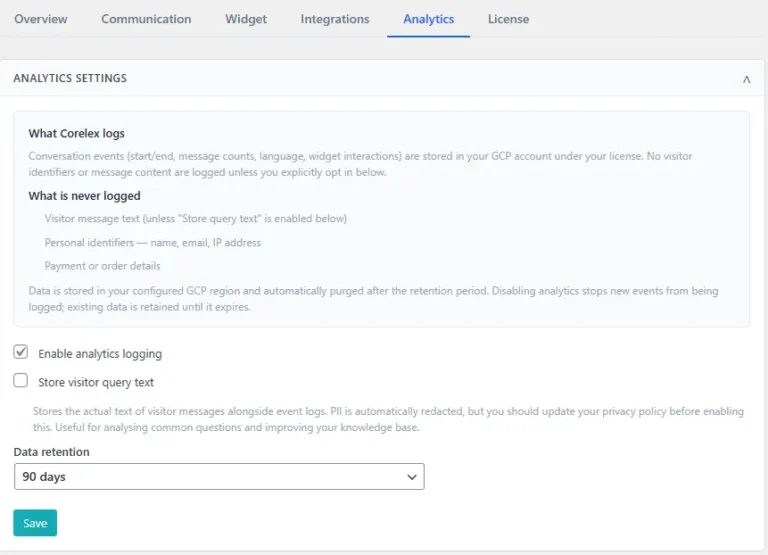
All settings as described here below have now been captured in an easy-to-use setup wizard.
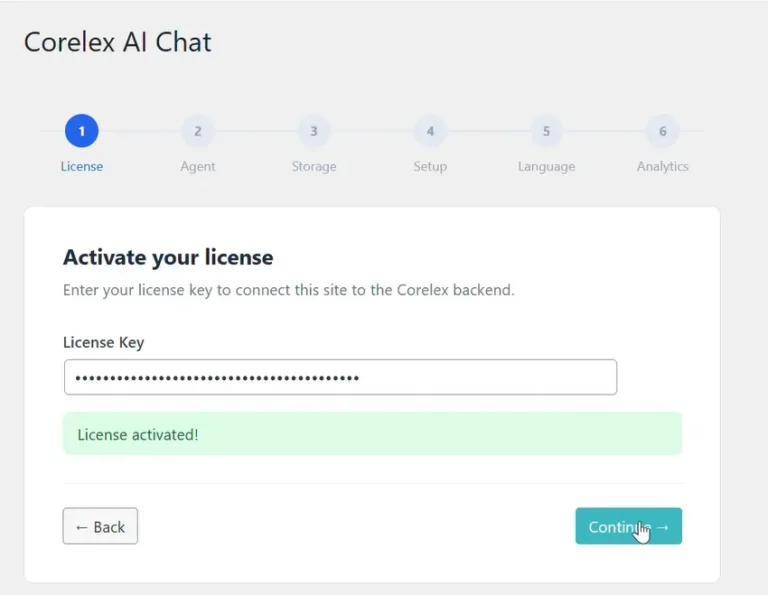
The below documentation is for information purposes only. In case some basic functionality would not be working correctly, then you may refer to the information on this page to have the very basic configuration of Corelex setup.
Install & activate plugin #
- Download & install plugin
- Activate the plugin
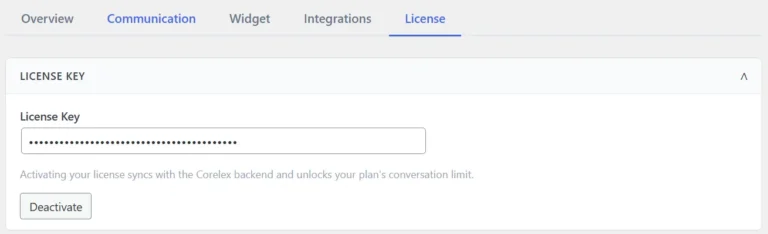
Activate your license #
- Navigate to the Corelex Admin page
- Here, select the License tab
- Paste the license key that you received in your order confirmation and click Activate
Integrations #
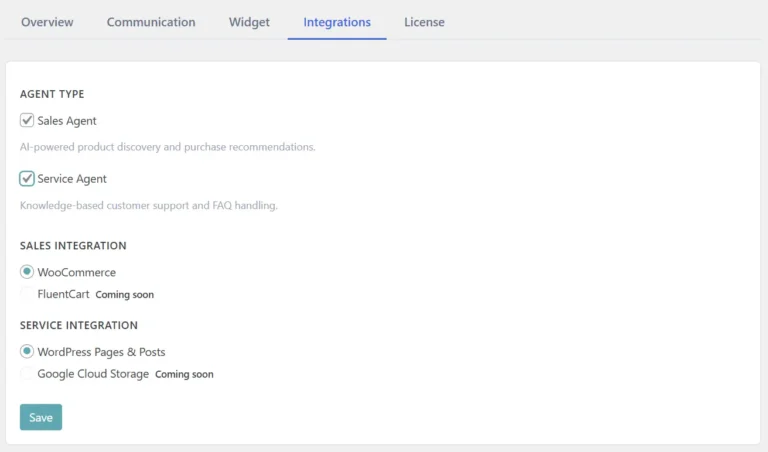
- In the Corelex Admin page, navigate to the Integrations tab
- Choose the particular integration(s) that you want to use – you may choose the Sales Agent or Service Agent individually, or combined. At this point in time:
- The Sales Agent integrates with WooCommerce for everything products / webshop related
- The Service Agent allows for selection of Page Types and uploading of PDF documents that are available in your WordPress website
Sales Agent #
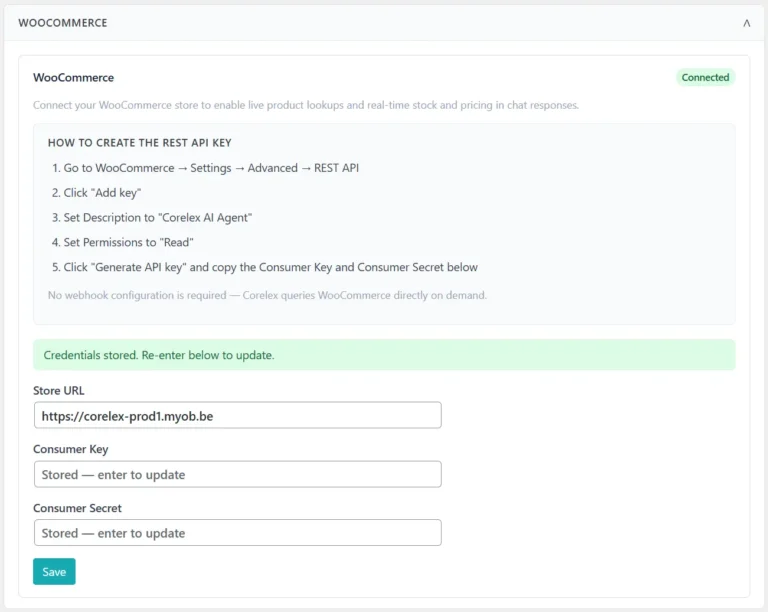
WooCommerce #
- To connect with your WooCommerce webshop
- Create a REST API key in WooCommerce
- The provide the Consumer Key and Secret Key in Corelex
Service Agent #
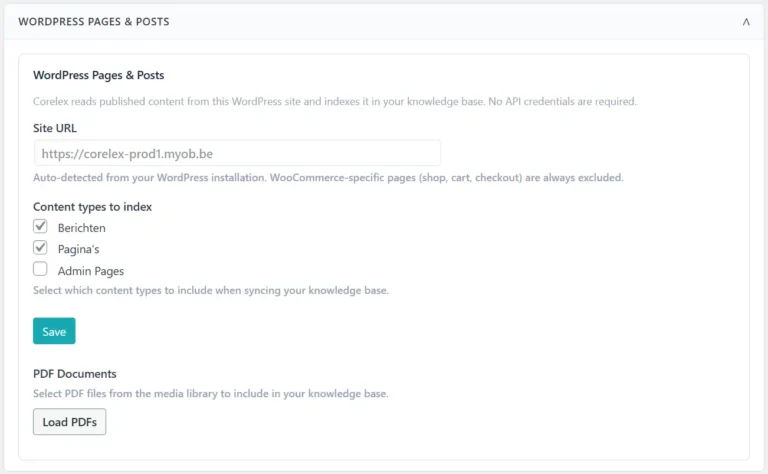
- To configure the documentation that will be indexed for Corelex
- Select the Post Types that you want to include
- Load and then select the PDF documents that you want to include
AI Search Setup #
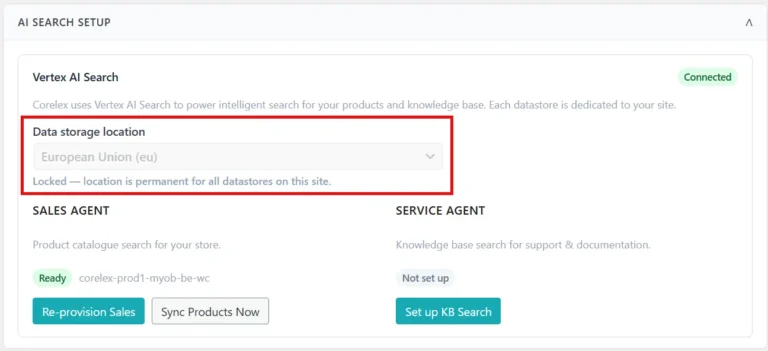
- Once the selection & configuration of the agents has been done, the AI Search datastore and search application have to get setup. To do so:
- IMPORTANT: Select the Data Storage Location where you want to store your data
NOTE: Once the Data Storage Location has been selected, it cannot be changed anymore! - Setup the Sales datastore & search app
- Setup the Service datastore & search app
- IMPORTANT: Select the Data Storage Location where you want to store your data
KNOWN ISSUE
- When PDF documents get loaded as part of the initial configuration, these documents are not automatically loaded with the initiation of the Service Agent. To ensure the PDF documents are correctly loaded, please click the Sync KB Now button after the initial provisioning.
Store Language #
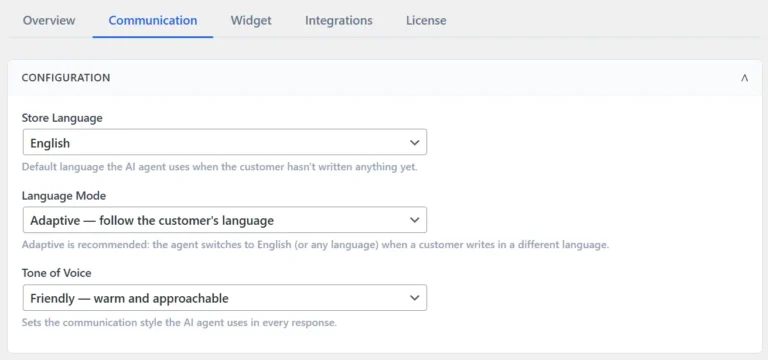
For optimal operation of the AI Agents, it is best to set the default language of your website data in Corelex. This ensures that dynamic language translation during chat conversations happens correctly. To set the default language:
- Navigate to the Communications tab
- Set the correct Store Language
Analytics Settings #
Corelex conversation events are automatically logged in your Google Analytics 4 statistics. You only have to Enable analytics logging. As of the activation actions that happen in the Corelex plugin get automatically sent to GA4