
Corelex gets a proper welcome: introducing the installation wizard
Getting a new plugin live on WordPress has always involved a bit of hunting — the right credentials tab, the right settings screen, a few trial-and-error clicks before anything actually works. With the latest Corelex release, that experience is gone.
This update ships a guided setup wizard that walks new users through every required step in sequence, with nothing left to chance. Alongside it, a cleaner analytics overview and a handful of under-the-hood fixes make this one of the more meaningful releases since launch.
Corelex runs entirely on Google Cloud Platform, with Gemini handling conversation and reasoning, and Vertex AI Search powering product and knowledge base retrieval. Getting that infrastructure provisioned correctly for each merchant — with the right data region, the right agent type, the right indexes — is exactly what the wizard is designed to make foolproof.
A first-run experience that actually guides you
The moment an admin activates Corelex, they’re greeted with a seven-step wizard instead of a blank dashboard. Each step has a clear purpose, and the next step doesn’t unlock until the current one is complete — which means there’s no way to skip something important and wonder later why things aren’t working.
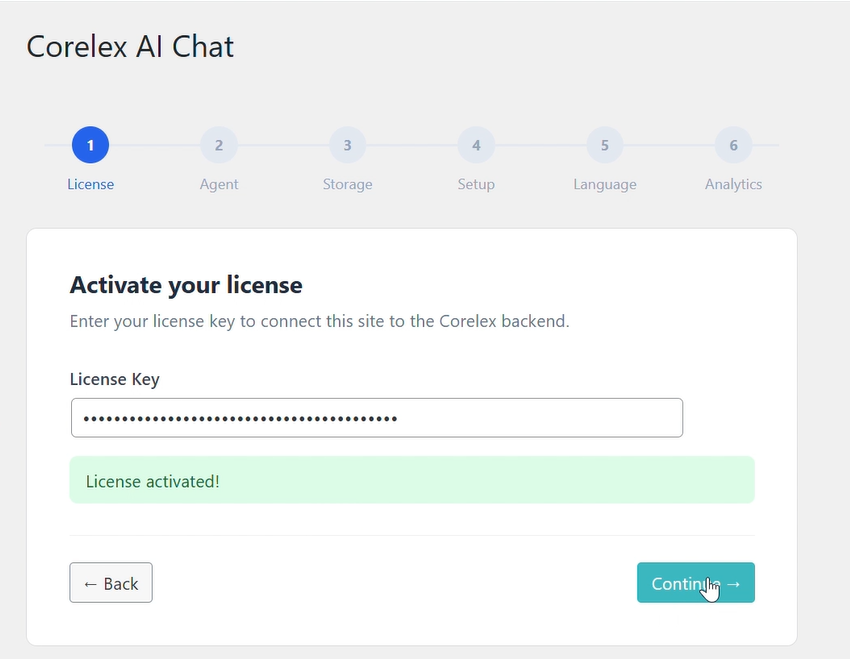
Here’s what each step covers:
- License activation
Enter and validate the license key. The wizard won’t let you proceed until the key is confirmed active, so there’s no risk of configuring everything only to find the plugin isn’t actually licensed. - Agent configuration
Choose between the Sales Agent (for WooCommerce or FluentCart shops), the Service Agent (for WordPress content or Google Cloud Storage knowledge bases), or both. If WooCommerce is selected, API credentials can be entered right here. If the Service Agent is enabled, the content types to index — posts, pages, and so on — are configured in the same step. - Data storage location
Choose where your Google Cloud search indexes will live: Europe (pre-selected and recommended for GDPR compliance), the United States, or Global. This choice is clearly marked as permanent once provisioning begins, so there’s no ambiguity about what you’re committing to. - Data store setup
Provision the Vertex AI Search index for each enabled agent directly from the WordPress admin — no GCP console access required. Sales and Service data stores are set up one at a time, with live status indicators showing progress. This step also includes an important bug fix — more on that below. - Language and tone
Set the assistant’s default language and choose a tone of voice: Friendly, Formal, or Playful. - Analytics and privacy
Decide whether to enable analytics logging, whether to store visitor query text, and how long to retain that data. The screen lays out exactly what is and isn’t captured, so the decision is fully informed. - Done
A confirmation screen that leads directly into the dashboard.
The whole flow typically takes a few minutes. At the end of it, the assistant is live, correctly provisioned, and ready for customers.
Cleaner analytics transparency
This release introduces a full GA4 event integration — so Corelex behaviour shows up directly alongside your existing web analytics, in the same reports, in the same tools.
How it works
Analytics settings live in a dedicated tab in the WordPress admin. From there, you control whether event logging is active, whether visitor query text is stored, and how long data is retained. These preferences sync to your Corelex backend and are applied both server-side and in the chat widget itself.
When analytics are enabled and a Google Analytics 4 tag is present on the site, Corelex automatically fires six dedicated events:
|
Event |
What it tracks |
|---|---|
|
corelex_chat_open |
A visitor opens the chat widget |
|
corelex_message_sent |
A visitor sends a message |
|
corelex_zero_result |
The assistant returns no matching result |
|
corelex_product_card_click |
A visitor clicks on a product recommendation |
|
corelex_add_to_cart |
A product is added to the cart via the assistant |
|
corelex_whatsapp_handoff |
A conversation is handed off to WhatsApp |
|
corelex_quick_action_click |
Visitor clicks any quick action button |
|
corelex_contact_email_sent |
Visitor submits the email contact form |
Each event is tagged with a session identifier so you can trace full visitor journeys — from the first time the widget opens to checkout or handoff — without bridging multiple disconnected data points.
The zero_result event is particularly useful: it surfaces the gaps in your product catalogue or knowledge base that visitors are looking for but not finding.
Looker Studio integration
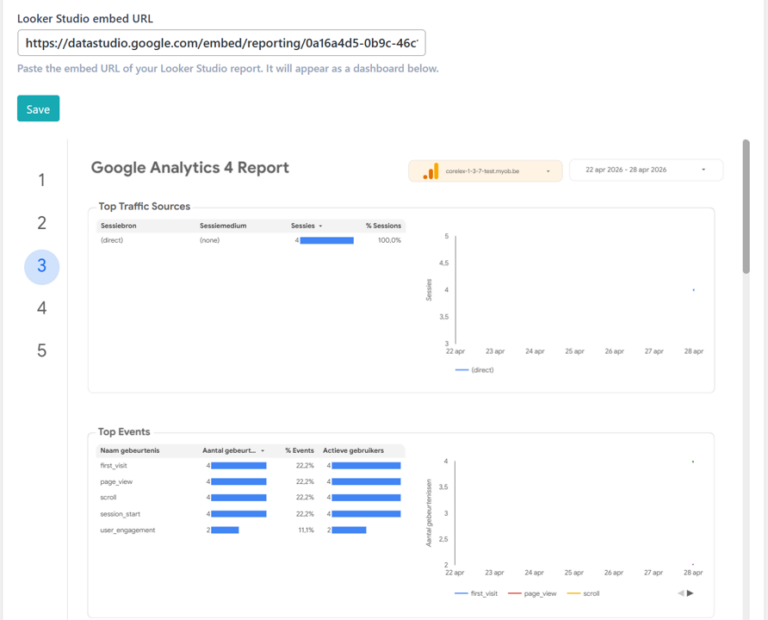
The Analytics tab includes a Looker Studio embed, where you can paste the URL of a Corelex-compatible report template and have it appear directly inside WordPress. A four-step onboarding guide is included to help you connect your GA4 property and get the dashboard live in minutes — no need to switch between tools.
What is and isn’t captured
The Analytics tab opens with a plain-language overview of the data model: what events are logged, what is never captured (visitor identifiers, message content unless explicitly opted in, payment data), where data lives, and when it’s purged. The same information appears during wizard step six, so admins make an informed choice at setup — not after the fact.
This is part of a broader commitment to making Corelex’s data practices readable without requiring a legal background.
WhatsApp handoff: when the AI knows to step aside
Not every customer question should end with an AI response. Sometimes a visitor is frustrated, the situation is too complex to resolve through chat, or they simply want to speak to a person. Corelex now handles those moments gracefully — by handing the conversation off to a human via WhatsApp, without losing any of the context that was built up during the chat.
How the handoff works
The AI agents are trained to recognise when a handoff is appropriate. The Sales Agent triggers it when a customer is clearly frustrated, has an issue it can’t resolve, or explicitly asks for a human. The Service Agent does the same when the knowledge base returns no relevant answer, or when the customer asks directly. In either case, the handoff happens without any manual configuration or rule-writing on your part — it’s built into how the agents reason.
When the agent decides a handoff is needed, a prompt block appears in the chat widget with a button that opens WhatsApp in a new tab. What makes this more than just a link: before the conversation is handed off, Corelex automatically generates a concise summary of what the customer asked, what was discussed, and what remains unresolved. That summary is pre-filled into the WhatsApp message — so your human agent has full context the moment the conversation lands, without having to ask the customer to repeat themselves.
What admins configure
The handoff requires just a WhatsApp number in the plugin settings. If the number is blank, the handoff UI never appears — no unwanted prompts for stores that don’t use WhatsApp. The prompt text and button label shown to visitors are fully customisable per language, covering Dutch, French, German, Spanish, Italian, and Portuguese out of the box. The widget selects the right language automatically based on the language of the conversation.
The customer experience
From a visitor’s perspective, the transition is seamless. They see a short, friendly prompt — in their own language — with a single button. One tap, and they’re in WhatsApp with a message already written, summarising exactly what they were trying to accomplish. No copy-pasting, no starting over.
Every handoff is also logged as a corelex_whatsapp_handoff event in GA4 and in the Corelex analytics backend, so you can track how often the AI escalates, for which languages, and whether those escalations cluster around specific products or topics.
Bug fix: Service Agent data store provisioning
This release also corrects an issue that affected stores running both the Sales and Service agents. A parameter mismatch in the provisioning request meant both data stores were being set up as product indexes — so the Service Agent’s knowledge base was never actually created. The symptom was subtle: everything appeared to complete successfully, but the Service Agent was effectively querying the wrong data.
The fix aligns the request parameters correctly so each agent provisions its own independent Vertex AI Search data store on Google Cloud Platform, fully isolated and scoped to its own content type.
What this means for new installs
If you’re setting up Corelex for the first time, the wizard is the only path you’ll follow. There’s no need to cross-reference documentation for the right setup order — the wizard handles that sequencing for you.
For existing installs, the updated analytics tab and the provisioning fix are available immediately after updating the plugin.
What’s next
Work continues on the Service Agent’s knowledge base configuration — including support for BetterDocs and Heroic KB, and more granular control over which content types get indexed. EU data residency messaging is also being refined across the product to make compliance positioning clearer for European merchants.
Corelex runs on the same Google Cloud infrastructure that powers enterprise AI at scale. The Gemini model layer and Vertex AI Search backend are shared across all tiers, which means reliability and retrieval quality are consistent whether you’re on Starter or Professional.
Corelex is the AI sales and service agent plugin for WooCommerce, built on Google Cloud Platform. Learn more at ucpro.be/corelex-plugin.